Showing posts with label Sara Paschal. Show all posts

Wednesday, February 13, 2013

Printed Fabric Transfer Using Digital Stamps

Good Wednesday to everyone, this is Sara;)
I am here with a tutorial for you on one more way to use  your digital stamps,
Printed Fabric Transfer.

Supplies you will need:
Digital Stamp
Today I am using
Computer/Printer
Fabric Transfer Printer Paper,
I used the product below from Avery
Iron and Ironing board
2 yards of ribbon trim
Fabric Glue
Scissors


Step One:  Open your digital stamp into your graphic program I use PSE10, make all the changes you desire.  For mine I used a red color stylizer.  In just a few seconds I had transformed the background image.

Step Two:  Print your image onto the transfer printer paper (per product directions). 
I chose custom print size and ticked the box Scale to fit Media.  *The original size of the background stamp is 5.94" by 7.29". 
You can see below the prompt box the open white space for the printed background.


 Now for the last screen before printing, you can see the digital stamp fills the entire
8 1/2" by 11" of paper and there is no more white space.


Step Three:  Cut your paper transfer to the size and dimensions you need for your project.
I used 3 3" wide strips 8 1/2" long.  I also had to cut two smaller pieces to fill in the end side of the pattern.  It took a full sheet of 8 1/2" by 11" transfer paper to complete my design.


Step Four:  Wash and Iron flat the flour sack towel.


Step Five:  Iron your your transfer pieces (per product directions).
You can see below how I used the hem of the towel for positioning my iron on transfer.
I did this step three times until I had the 3" trim transfer I desired.


Step 6:  Take your fabric trim and fabric glue and apply to the upper and lower borders of the transferred image and let it dry overnight.  You can if you wish tack it in a few places with some stitching if you so desire.

 Here is a photo of my finished towel hanging...

This was so much fun to do, I hope you give this tutorial a try.
Any questions you can email me
paschal.sara@gmail.com

Thanks for stopping by
Eureka Stamps blog today.


Wednesday, January 30, 2013

Digital Stamp PSE10 Digital Coloring Tutorial

Hello and Welcome To Eureka Stamps.
I am Sara, today I have a tutorial for you on how to
digitally color your Digital Stamps.
I am using PSE10.
(This should also work for versions below.  However, if you are
using version 11 the tools are all there just in different places in the program window.)

If you love digital stamps and do not have photoshop now is the time to pick up version 10, you can find it at closeout prices since version 11 is now on the market.  


  I will show you how I digitally colored
the Bear With A Heart  and used him on a card for today's tutorial.

You can also pick up a freebie download I have prepared for you with this link:
**The digital stamps used are not included in this kit you
can pick them up 
from the
with the provided links:

and

Kit does include:
1 embossed heart paper
5 digi pattern papers
1 Flourished Adventure Map psd file

all digital papers are 300dpi 12" by 12" jpg files

Please pick up the kit and digital stamps so you can try this fun technique.

Kit Preview...

Are you ready for a New Adventure?
You can click on any image below and it will take you to the full size image for better viewing.


If your image is a png you can skip this next step because a png
already has a transparent background.


(I note a little blip of red on his finger, grab a small eraser when this happens and remove the color that is outside the digital stamp line.)


Your adjustment layer is the half moon shape at the bottom of your layers panel

I am going to take a minute here to explain the Layers section a bit more for those who are not familiar with the program.
After I duplicated my original image and had completed the placement into the program I went ahead and duplicated the bear with a heart layer twice,
this created three layers of the bear in the layers panel.
(the layer quantity I create depends on the complexity of the digi stamp or, how many different colors or effects I think I may use.  Each color or DP goes on a different layer.
I do on occasion break this rule of layers just depends on what I am doing, when you get used to the program you will develop your own habits. 
 For in Photoshop there are multiple ways of obtaining the same outcome.

Now the adjustment layer (after you click the half moon automatically opens onto a new layer).
Compare the screen shot from above to the one directly below.
See how the adjustment layer became the first layer?
Then note how I moved the  adjustment layer position in the layers panel.

***********

Now we can move forward with the removal of the excess adjustment layer.


Again the DP when placed creates its own layer in the layers panel
 just like I explained with the adjustment layer.


Because I colored the heart on its own layer I was now able to attach the dp to the heart layer,
when you work like this you do not need to use the eraser because the paper automatically 
snaps into the colored heart position.
I run a Mac to attach layers you move the mouse cursor to the black line between your dp layer and the colored heart layer.
Next hit the 
Option key on your keyboard, this will change your cursor into a double circle
the top circle appears black.
After this shows up you know you are in the right place so click your mouse one time.
Now the dp layer is offset and shows a down arrow pointing to the bear with the colored red heart.
This means you have successfully attached your layers.

****
In this screen shot you see how I now have merged all the layers into one,
I decided to paint the paws and small heart on this layer.

To merge layers in photoshop
move your cursor up to the very top of the program screen
 click on Layer
Move down to the options
Merge down
Merge visible
choose merge visible, now only one layer will appear in the layers panel as shown in 
the screen shot below.


Here is my finished Bear With A Heart...


Now I will show you how I used this colored digi to make a hybrid card...


In the free download you will receive a psd file called
Flourished Adventure Map
Open this in PSE


Now you have completed your card front.
Print it off onto card stock or I like to use a glossy photo paper.

Cut your mat layer
4 1/8" by 5 3/8"

Cut your card base
4 1/4" by 11"

Score Card base at 5 1/2"
Fold your card base on the score line.

Attach your mat layer.

Attach your printed card front.

I stopped there with my creation however, you can continue to embellish as you wish.

I had fun working with this little guy, hope you have enjoyed  as well.

Any questions you may have contact me at
paschal.sara@gmail.com
and I will try to answer them for you.

Don't forget to go pick up the digi stamps at the

and

and your free download


Friday, November 30, 2012

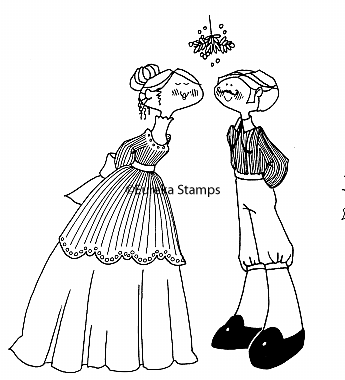
Mistletoe Couple

Let the Holiday Fun Begin Challenge
is going on this week.  
You still have a few more days to get your entry in.
We would love to have you come and play with us.
Please scroll down to the weekly challenge post;)

I decided on this fun digi image for my holiday fun creation:


Card inside:
They are just so DARN cute;)
The inside of my creation uses

I used photoshop to color my images, printed them out on stampers select white 
cardstock and die cut them with nestabilities.
A few strokes with a sponge and TH distress ink helped give the printed images a more
vintage feel.
The deliciously yummy vintage paper is from, 
Holiday Vintage Prints Collection PaperTrey Ink.


The Eureka Stamp Store offers rubber and digital images giving
you the best of both creative worlds.
Please stop by Eureka Stamps Store and have a look around.
Sign up for our newsletter while you are visiting so you don't miss
out on one single moment of the good stuff.


Happy Stamp Day, God Bless!

Sunday, October 14, 2012

Don't Open!

Hello friends, and welcome to 
Eureka Stamps Blog.
I am Sara from
bringing you,
Don't Open!

from

The digital stamp was colored in Photoshop, printed and fussy cut.
He was adhered using dimensional foam.
Isn't he just adorable?  He is one of my favorite images.
They don't call me Sara Beara for nothing;)

The Eureka Stamp Store offers Rubber and digital images giving
you the best of both creative worlds.
Please stop by Eureka Stamps Store and have a look around.
Sign up for our newsletter while you are visiting so you don't miss
out on one single moment of the good stuff.


Happy Stamp Day, God Bless!


Saturday, September 29, 2012

Happy Fall Ya'll

A Happy Saturday to all of our Creative Friends, hope you
can get out and enjoy today to the fullest;)
Today's post is brought to you by:

Happy Fall Ya'll!


This fun image is from:
It was digitally colored in Photoshop and cut out
using Nestabilities Ovals from Spellbinders. 

The Sentiment Digi
A tip for you on the little sentiment flag, use your square punch to get 
even ends!

Please check out our blog Eureka Stamps Blog,
we would love for you to join in on our weekly challenges!


The Eureka Stamp Store offers Rubber and digital images giving
you the best of both creative worlds.
Please stop by Eureka Stamps Store and have a look around.
Sign up for our newsletter while you are visiting so you don't miss
out on one single moment of the good stuff.


Happy Stamp Day, God Bless!

Sunday, September 9, 2012

Good Job, Sport!

Welcome to Eureka Stamps Blog
I am Sara from
bringing you my card for the
"go team go" Challenge.


This fun image is from:
It was digitally colored in Photoshop and cut out
using Nestabilities Lacy Circles and Circles from Spellbinders. 


Please check out our blog Eureka Stamps Blog,
we would love for you to join in on the weekly challenge
"Go Team Go"!
Hurry over a new challenge begins tomorrow;)

The Eureka Stamp Store offers Rubber and digital images giving
you the best of both creative worlds.
Please stop by Eureka Stamps Store and have a look around.
Sign up for our newsletter while you are visiting so you don't miss
out on one single moment of the good stuff.


Happy Stamp Day, God Bless!

Saturday, August 25, 2012

Sweet Blessing

Good morning crafty peeps,
today's card is brought to you by Sara.

Eureka Stamps Digi Stamps

&

I had a great deal of fun coloring this beautiful image.
It was printed off on Fabarino Watercolor paper and colored
with Copic Markers.

And the sentiment digi Sweet Blessing what a beautiful
sentiment to have in your stash!

Please go check out all that Eureka Stamps has to offer.
You will find images in Rubber and Digital formats, the best
of both creative worlds in one stop shopping.
There are so many more wonderful images such as the
listed under
We would love to have you sign up for our newsletter while you are there.

So are you itching to complete a challenge?
This month Eureka Stamps launched a new challenge blog
play along with us weekly at

Like us today so you don't miss out on one second of Eureka Stamps happenings.

Happy Stamp Day, God Bless!

Sunday, August 5, 2012

Clowning Around

Greetings to you on this beautiful blessed Sunday morning.
Sara here from Sara's Creative Adventures, showing you today
a fun and bright birthday card created with Eureka Stamps 


Following images are also included in my creation


 Eureka Stamps come in both 
Rubber & Digital format giving you the Best of Both Worlds
 Please Stop by and check them all out!
 We Would Love for You to Sign up for the
 Email List while you are visiting!)

You can also find Eureka Stamps on Facebook,
like us today to keep up on all the
fun, challenges & surprises;)

Happy Stamp Day, God Bless!

Saturday, July 28, 2012

Just A Note on the Go

Happy Saturday!
Today I am bringing you
"Just a note...",
A stationary set for those on the go.

 Below is a close up of one of the small note cards, they are retired SU, time to get these
babies used up.  I made some return address labels and placed them on the backs of the envelopes. 
They are a perfect size for the set and I tucked them into a small brown sack.

Below you can see how I used red line tape and wax paper to make my own bag.
(I have looked all over and have not found a sack I like for packaging up these list pads.)

Product list...

digital kit download Express Yourself
Elements and Papers

Photoshop Express
HP 7000 printer

Jr legal pad cut in half from Staples

PaperTrey Ink stampers select white card stock, aqua mist card stock, 
dark chocolate card stock vintage buttons

White paper clips, return address labels, binder clip, RSVP pen and post it notes from office supplies

Stampin' Up small note cards and envelopes, scallop circle punch brown felted ribbon

Prism Floss Brown

I also plan on tossing in a few withdraw and deposit slips for the bank.
This little set will be going into 
my ride;)


Happy Stamp Day, God Bless!

Thursday, July 19, 2012

Walk On Water

Good Morning to you!  
This little creation is sure to put a spring in your step and get
you ready for a wonderful day!

Walk On Water
Easel Fold Card

I used an easel fold so the sentiment was also showcased.
This would be a great way for Sunday School kiddos and VBS attendees
to learn the scripture for the day.

Close up of easel top...
Above I used the digital image

Close up of easel bottom...
The sentiment digi image on the bottom portion is

I added in some drop shadow so it would match the distressing of the waves 
and change the look just a tad.
The waves were cut on my Cricut using digital paper that I printed out.
Distressed by inking up my Divine Swirls embossing folder with
Tim Holtz distress ink vintage photo.

Both of the digital  images listed above come in Rubber and Digital images
and can be found at:

Product List...


digital paper  used Stormy Skies
from Design House Digital

Cricut Expression

Photoshop Elements 10

HP 7000 printer

Nestabilities Lacy Circles die cut and circle die

Tim Holtz Distress Ink vintage photo

Divine Swirls CB embossing folder

PaperTrey Ink Stampers Select White Card Stock

Stampin' Up Basic Gray Card Stock

Happy Stamp Day, God Bless!